


If you want to setup Shopify store quickly and easily, this guide walks you through every step from creating your account to launching your first product. Starting your own online business can feel overwhelming, but Shopify makes it much easier. Whether you’re selling fashion, electronics, crafts, or digital products, Shopify gives you all the tools to launch and grow your store quickly.
Setup Shopify Store – Step-by-Step Guide for Beginners
Step 1: Sign Up for Shopify
- Go to Shopify and click Start for free.
- Enter your email, password, and store name.
- Shopify will ask you a few quick questions about your business goals.
👉 Pro Tip: Pick a store name you can grow with. Don’t stress too much, you can change it later.

Step 2: Add Your Products
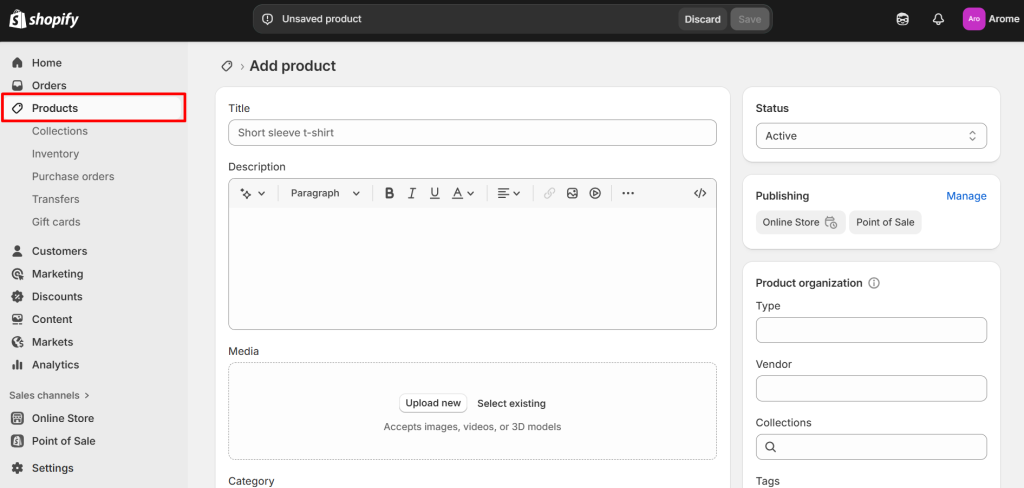
- From the dashboard, go to Products → Add Product.
- Fill in your product title, description, and price.
- Upload high-quality images (this makes a huge difference in conversions).
- Add product variants (sizes, colors, etc.) if needed.
👉 Pro Tip: Write clear product descriptions that focus on benefits, not just features.
Step 3: How to Create a Product Collection
Now that your products are successfully added to your Shopify store, it’s time to organize them into a collection page, a curated space where items of the same category live together. Think of it as a digital aisle in your store, helping customers browse with ease and boosting your conversion potential.
If you’re running into any hiccups during setup, don’t worry, your Shopify setup expert can jump in and get things sorted in no time.
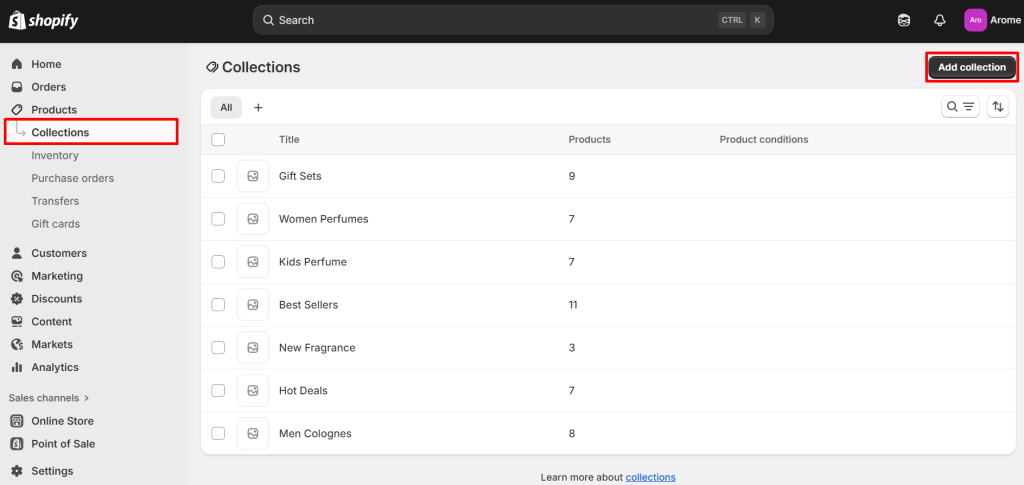
Click ‘Add Collection’
This opens the setup Shopify store panel where you’ll define your collection’s name, description, and type.
Choose Your Collection Type Wisely
Just below the “Create Collection” button, you’ll see the Collection Type option. You can choose between:
Automated Collection
Products are added automatically based on conditions you set—like tags, price, vendor, or product type. Perfect for dynamic categories like “Under $50” or “Organic Skincare.”
Manual Collection
You handpick which products appear in this collection. Ideal for curated bundles, seasonal picks, or promotional sets.
| Feature | Manual Collection | Automated Collection |
| Definition | Collections created manually by the store owner. | It saves your time, as products are added automatically. |
| Creation Process | Collections are created manually by the store owner. | Collections are generated automatically by rules. |
| Product Selection | Requires the manual selection and addition of products. | On predefined conditions and rules, the products can be added easily. |
| Maintenance | Requires manual updates and additions. | Automatically updates as products meet conditions. |
| Flexibility | Offers more control over product selection. | Offers less control over product selection. |
| Time Investment | Requires time to select and add products manually. | Collections are created manually by the store owner. |
| Scalability | Suitable for smaller collections or unique selections. | Efficient for large collections or dynamic product sets. |
| Updates and Changes | With the help of the store owner, it’s possible to make the changes. | Automatically adjusts as per predefined conditions. |
| Workflow Efficiency | May require continuous monitoring and adjustments. | Streamlines collection management with less manual effort. |
| Use Cases | Ideal for curated collections or promotional campaigns. | Effective for collections based on product attributes or tags. |
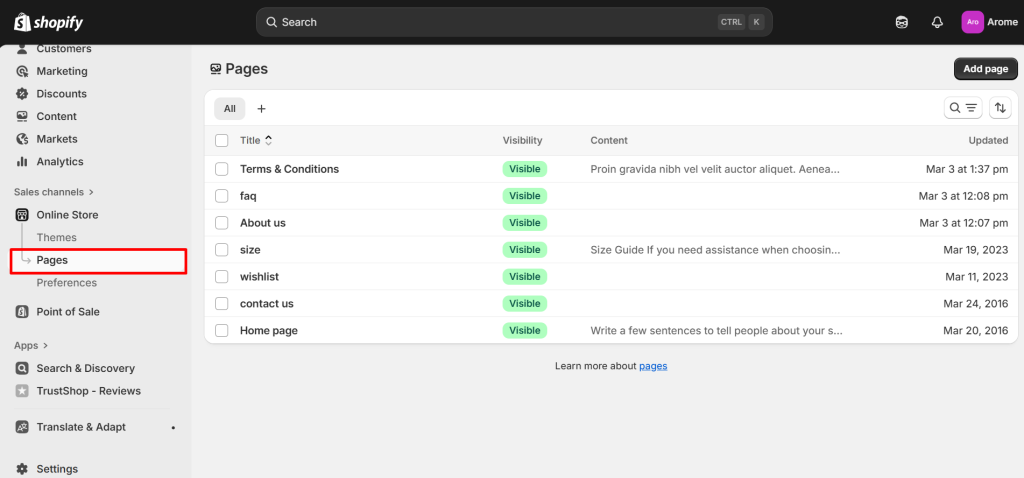
Step 4: Create and Publish Essential Pages for Shopify Store
If you’ve made it this far, chances are you’ve already selected a theme that fits your brand—and now it’s time to build the foundation of your store’s credibility and user experience: your core pages.
These pages aren’t just formalities, they’re vital for building trust, improving navigation, and staying compliant with Google’s algorithm. Here’s a quick rundown of the must-haves:
✅ Key Pages to Create
- About Us – Share your brand story, mission, and what makes your store unique.
- Disclaimer – Clarify any legal boundaries or product limitations.
- Privacy Policy – Inform visitors how their data is collected and used.
- Contact Page – Make it easy for customers to reach out with questions or feedback.
- FAQs – Answer common queries to reduce support load and improve user experience.
- Blog – Share updates, insights, and tips to build authority and drive organic traffic.
💡 Pro Tip: While FAQs and blogs aren’t mandatory, having them gives your store a competitive edge, especially in SEO and customer engagement.
Step 5: Choose the Perfect Shopify Theme for Your Store
Your Shopify theme isn’t just about aesthetics, it’s the backbone of your store’s user experience, branding, and conversion potential. Whether you’re launching a niche store or scaling a multi-category catalog, choosing the right theme sets the tone for everything that follows.
# Why Your Theme Matters
A well-chosen theme does more than look good
- Shapes first impressions
Visitors decide in seconds whether to stay or bounce. Your theme’s layout, typography, and visuals play a huge role. - Impacts site speed and SEO
Lightweight, optimized themes improve load times and search rankings. - Drives conversions
Strategic design elements like sticky carts, product filtering, and trust badges can dramatically boost sales.
# How to Choose Your Theme
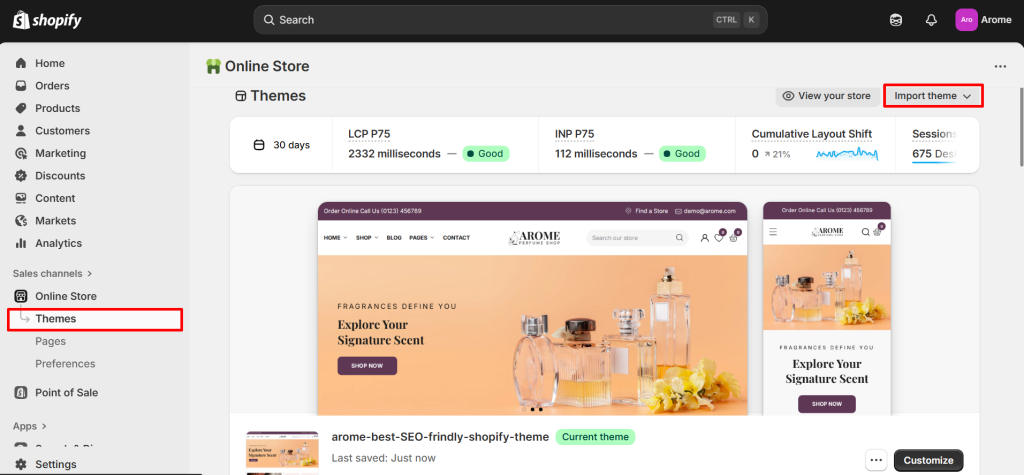
- Browse the Shopify Theme Store or upload a custom theme.
- Preview themes before publishing to see how they fit your catalog.
- Look for features that match your store’s goals:
- Mobile responsiveness
- SEO-friendly structure
- Customizable sections
- Fast load speed
- Built-in conversion tools
If you’re using one of our premium themes, you already have a head start. Each theme is built with SEO optimization, niche adaptability, and conversion-focused design baked in. Whether you’re selling organic skincare or tech gadgets, your theme should feel tailored not generic. Your theme is more than a template, it’s your storefront’s personality. Choose one that reflects your brand, supports your goals, and delivers a seamless experience across devices.

Step 6: Launch Your Store
- Preview everything in both desktop and mobile views.
- Test your checkout with a small order.
- When ready, remove the password from your store under Online Store → Preferences.
🎉 Congratulations, your store is live!
Final Thoughts
Setting up a Shopify store doesn’t have to be complicated. With the right products, theme, and setup, you can be online in just a day.
If you want a head start, check out our professionally designed Shopify themes at Team90Degree created to help you sell more with clean design and optimized layouts.


